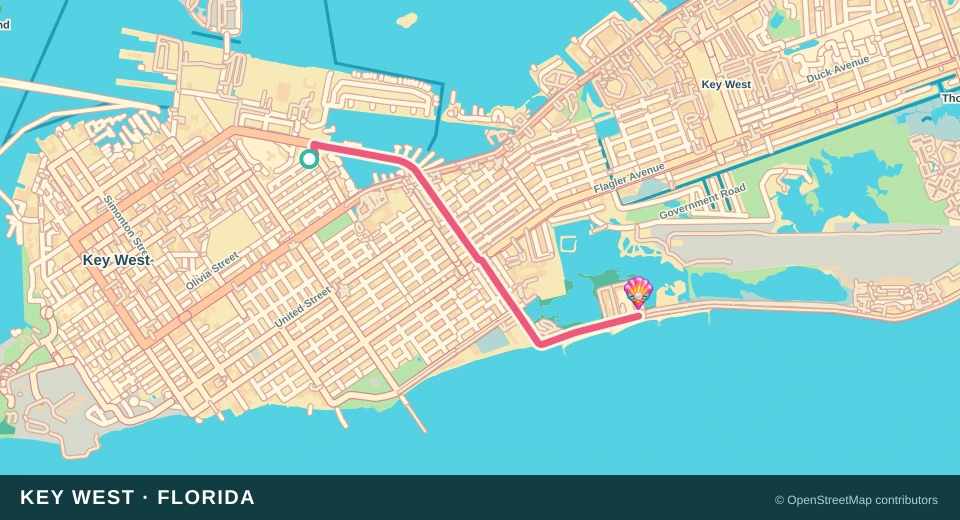
A step-by-step approach to styling land, water, roads, routes and labels.
Pick one anchor colour
Begin with the feeling you want: fresh aqua, warm desert, nocturnal purple or something else. Choose one anchor colour, then define a small supporting palette. Do not assign a new saturated colour to every map layer.
Write down the core roles: land, water, park, roads, route and labels. Their relationships matter more than any one hex value.
Adjust large areas before details
Land and water occupy much of the screen, so set them first. Next establish road hierarchy and only then tune the route and destination markers. This order reveals contrast problems early.
Use lighter backgrounds with darker labels or the reverse. When both are mid-tone, legibility becomes fragile.
Save, compare, refine
In the SigmaMaps browser Map Studio prototype, create a new style, name it and adjust the colour groups. Compare your edit against an existing skin and check the full map—not only the small preview.
Current custom style saving is prototype/browser-scoped; it is not a released cloud-synced library. Keep a copy of important colour values.